Digital DJ Tips3>

Learn How To DJ With Digital DJ Gear

4 Easy Steps To Adding A Tablet Controller To Your DJ Set-up

TouchOSC

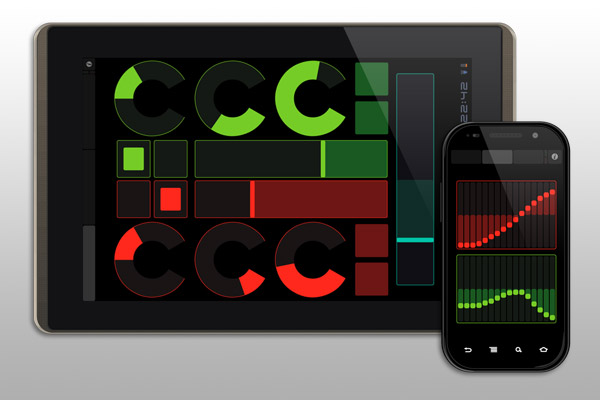
Touch OSC lets you control aspects of your DJing wirelessly using an iPad, iPhone, iPod Touch or Android tablet. Today we show you how easy it is to add it to your set-up.

One of the coolest aspects of being a digital DJ is all the new “toys” we get to play with. Our laptops, our timecode set-ups, our Midi controls, and now even the very smartphones and tablets we use on a daily basis.

Ever since the Lemur Jazzmutant hit the scene, DJs have wished for a more affordable way to have a touchscreen controller in the booth. The gang at Hexler answered the call with TouchOSC, and today I’m going to show you in four easy steps how to hook it up to your existing digital DJ set-up.


Note: I’ve made a video to support this article, and you can find it at the end of the piece.

1. Gather what you need

To use TouchOSC, you’ll need an iOS or Android device and a copy of the app from either platform’s respective app store. Here’s what else you’ll need and why:

  • Pure Data – A freeware software program designed to help you wirelessly connect your touch device to your computer
  • basic.pd – This is a file that you will run on Pure Data. It’s been created by Hexler to use with TouchOSC
  • Midi Connection Software – We have Pure Data and basic.pd to bring the signals of TouchOSC into the computer, but you still need a program to help translate them into a Midi signal that can be used. You have four choices. You can try using an Open Sound Control (OSC) connection, TouchOSC Bridge, the Line 6 Midi Mobilizer, or the CoreMidi framework. For our purposes, we’re going to use TouchOSC Bridge since it’s very easy to set up

2. Determine the IP addresses

Of your tablet…
The original releases of TouchOSC required you hooking up your device to the computer via a cable. While feasible, it’s also a bit cumbersome. Thankfully with more recent releases, things have been set up to run wirelessly. However, with the myriad of wireless devices out there (especially in a club setting), one will need specifics on which device connects to what… namely IP addresses.

Sample touchOSC settings

Sample TouchOSC settings; these are from my iPhone.

When you open TouchOSC on your mobile device, go to the settings section and select “OSC” on the connections. If you see it disabled, enable it. You’ll then see a blank titled “Local IP address”. Jot down this address on a piece of paper. It’s the IP address of your device.

…and of your PC or Mac
On your PC or Mac, you now also need to determine its IP address. If you don’t know how, here are instructions on how to find it in Windows and Mac OS.

In the OSC connection section on your mobile app, enter the IP address of your computer into the “Host” blank. I would leave the ports alone unless you happen to do some tricky stuff with your wireless, in which case you should already know what you’re doing at this part.

Enable the “Midi Bridge” connection in the settings as well. If you have TouchOSC Bridge running on your computer, you might see your computer appear in a list here. If not, then enter the IP address of your computer in the “Host” blank.

Go back to the main settings window and press “Done” if you’re ready, or select one of the pre-installed control set-ups and then press “Done” to confirm it all.


3. Edit basic.pd to connect

Now we’re set on the mobile end, let’s get things connected on your computer. If you haven’t installed Pure Data, do so. Open it up and then open the basic.pd file within Pure Data. The Pure Data program itself looks complex, but basic.pd doesn’t.

Go to “Edit” and select “Edit Mode”. Click on the rectangle that says “Connect 10.10.10.10.9000”. Delete the IP Address and enter in the IP Address of your touch device.

If you see this, then you’re connected!

From here, go back to “Edit” and uncheck “Edit Mode”. Then on the basic.pd view, click on that rectangle with “Connect” and your mobile device’s IP address in it. You should see it click like a button this time. Now move a fader or press a button on your mobile device.

You should see the Pure Data window (not the basic.pd area) suddenly scroll with loads of lines of numbers being written. If you see this, then you’re connected!

4. Make the Midi connection

If you have not run any of the four choices for Midi Connection, do so now. Be sure to have this running before you open your choice DJ/audio software. I say this because when I ran Traktor first, it didn’t recognise the control when I ran TouchOSC Bridge after. Think of it as hooking up your USB Midi controller before running your program.

At this point, you’re ready to map the controls on your touch device to your program.


Video


Next time…

Now you know how to set up and use the pre-made control layouts of TouchOSC, what about making your own? Take a look at Design Your Own Tablet DJ Controller In TouchOSC
Is this the Future of Digital DJing?
Exclusive First Review: djay For iPhone & iPod Touch

Want to escape the bedroom and play in public - fast?
Our 1000s-selling How To Digital DJ Fast video course shows you how.

Learn to DJ Free - email course plus bonus PDF book
Sign up for our weekly email course for beginners now...

Trouble choosing a controller? Visit the web's #1 guide!
DJ Controllers: The Ultimate Buyer’s Guide 2013.


Tags: , , ,


Creative Commons LicenseThis work is licensed under a Creative Commons Attribution-NonCommercial-NoDerivs 3.0 Unported License.

32 Responses to “4 Easy Steps To Adding A Tablet Controller To Your DJ Set-up”
  1. dj SoniQ says:

    Nice Article as always. One quick question though before I give this a try. Do you need to have a wireless router or Access point to hookup the wireless device and computer? Typically the wireless devices cant connect to the computer in AD-HOC mode which is what you get when you try connecting without an AP or wireless router.

    Thanks
    dj SoniQ

    [ link ]
    • Steelo says:

      I have my iphone running TouchOSC which I had no problem connecting via an AD-HOC connection. This is definitely the preferred connection method so nothing can go wrong or interfere with your signal. I don’t know if it would be as easy using a PC but its a breeze between all apple products.

      [ link ]
  2. Slak Jaw says:

    Great article. I’ve been using TouchOSC for over a year on my iPhone 4 and for a few months on my 3rd gen iPad. It works great for controlling Traktor using an ad-hoc connection on my MBPro. However, I find that the latency is too high for proper use of beat synced effects (Beatmasher, Gater, etc.) and precise beat juggling. I’ve been searching for the ideal wired midi connection to eliminate this latency. I would love to see a review and setup guide for some of the current wired midi connection options (Alesis IO Dock, iConnect MIDI, Tascam iU2, iRig MIDI, Line6 MIDI Mobilizer 2, etc.) in an upcoming article. Thank you.

    [ link ]
    • D-Jam says:

      We’ll see what we can do.

      I did notice too the latency issue when I tried making a mix using TouchOSC, as well as my laptop struggling at times.

      [ link ]
    • Jeremy says:

      I just recently picked up the i-Rig Midi and couldn’t be happier. I’ve used it with Lemur and Soundprism and it’s worked like a champ.

      [ link ]
      • Slak Jaw says:

        @Jeremy. Are you able to connect the iPad directly to your computer using the iRig MIDI or do you need an additional interface to make it work?

        [ link ]
      • Jeremy says:

        The iRig comes out MIDI, so you need something with MIDI in-out. I personally picked up a MIDI to USB adapter off Amazon for like $2 and two Female-Female MIDI connectors there for like $4 a piece and it’s worked great.

        [ link ]
  3. I’m also using TouchOSC and I did not even kown of those Pure Data or basic.pd foe me it works perfect with only using TouchOSC Bridge, I’m on a mac by the way.

    TouchOSC on iOS TouchOSC bridge and TouchOSC editor on my mac all that really is needed.

    [ link ]
    • D-Jam says:

      Did you use it wirelessly?

      I’m led to believe the Pure Data thing is mainly if you’re going wireless with it all. Bear in mind I’m only going by their documentation. :)

      [ link ]
      • yes wireless bouth through rooter and also ad hook and works with only TouchOSC bridge. But maybe for Windows Pure Data is needed.
        There is a bit of latency, but I use midi controllers also for cue points and FX. I mainly use TouchOSC at home so I don’t have to start up every thing when I only want to play around a bit.

        [ link ]
    • Jan Welten says:

      I use TouchOSC Bridge on my PC (Win7) directly with no Pure Data eiter. Cannot see why that is needed. Cant say I have lots of latency, and yes – all wireless.

      [ link ]
  4. Mark says:

    Can i use this with Serato Scratch Live?
    Thanks:))

    [ link ]
  5. antiMACtax says:

    Just wanted to note that Lemur by Liine for the Ipad is excellent as well. I run a PC laptop ad-hoc to the Ipad. Ableton works great with “MU” which requires Max4live. This isn’t as cost effective as TouchOSC, but definately quenches anyone’s thirst if they missed out on the original Jazzmutant Lemur.

    [ link ]
  6. Bart says:

    I like touchosc but not as a dj solution as a replacement for your midi controller. Maybe for some extra’s, but it misses the responsiveness of buttons and faders … imo.

    However as a mobile dj I have to control lights. I’m using dmxis to control the light and I created a 3 tab light template so I can switch between complete “shows” or can easily control my moving heads and lasers with some easy taps on the ipad/ipod.

    And it will go further in the future, antari allready has a fog machine that can be controlled via an app.

    [ link ]
    • Luis says:

      What else you uses in order to trasform that signal in dmx for conecting The movimiento heads? Sorry for my english

      [ link ]
      • Bart says:

        dmxis = software + usb to dmx converter

        [ link ]
  7. Pete Simpson says:

    I built this setup a while back, so that I could DJ remotely with Ableton. The only problem is you can’t queue with headphones unless you’re over by the decks (remote headphones = lag). Still, with Ableton set up right and all songs queued and EQ’d, I could play a set from the dance floor with it. There’s a track browser page that sends the clip info to the phone, and a full 2 channel mixer with x-fader and EQ, and an FX page. There are also sliders which move as the track progresses, a simple visualisation of the track play time. It’s sort of hair-raising to get the thing working, and the Live setup may not be to everyone’s tastes (two channels with same track in each). If you’re bored today, have TouchOSC and Ableton 8, have a go with it.

    http://operand-error.blogspot.co.uk/

    I haven’t even looked at TouchOSC for a while, at least a year, and notices a few updates to it that look like they could be fun like changing colours etc. I wonder also what could be done with Traktor and TouchOSC, anyone done any work on that? Love to have Live or Traktor sending level info to the phone so I could get some proper VU meters on there :)

    [ link ]
  8. celtic-dj says:

    thanks for this article, well written…i learned something new.. but in a live environment i would be worried about relying on to many wireless devices.would love to use a tablet to load tracks into the decks though !

    maybe in the future the dj both will be an isolated interference free bubble/dome full of wireless devices such as the new “leap” 3d motion sensor , motion tracking cameras etc…

    [ link ]
  9. Spektakx says:

    TouchOSC made a nice leap forward with the bridge. In most instances, it’s all you’ll need. The whole process is far easier than it was in the beginning.
    If for some reason, the bridge isn’t working for you, rtp midi works great.
    I mention this, because I had some difficulty with a couple softs and touchosc bridge, but they work fine with rtp.

    [ link ]
  10. Mikemusic says:

    I have no clue how to install PureData & that’s where I’m stuck.

    [ link ]
    • dj SoniQ says:

      I had totally forgotten about the tethering funtionality on the tab :p since i never use it, it have APs wherever i use the tab. Got the whole thing in a breeze. One point to not though @Mikemusic, the link in the article seems to point to another release or something of PureData, what i did was to google and download PureData Extended. That gave me the kind of interface in the video & after that setting it up was smooth.

      [ link ]
    • D-Jam says:

      PD is just an installer like any other program for Mac or Windows now. Go look at their site and see the latest versions.

      You can follow along with the video if the setup is boggling you.

      [ link ]
  11. Rick Dawson says:

    I really wish hexler would get custom layouts enabled for the Android version…

    I (and I’m sure many others) would pay for it.

    if your mobile can become a wireless hotspot, then use this to connect your laptop and tablet together.

    and (not metioned in the article, but should be) is the midi bridge for TouchOSC. simplifies the data connection… no messing around with PureData etc.

    [ link ]
    • D-Jam says:

      Really? I thought it was.

      I’ll check into it on my Thinkpad Tablet when I make the article/video for custom setups.

      That would suck if it wasn’t enabled.

      [ link ]
  12. john c says:

    Hi, I’v followed all of these steps but it doesnt seem to be working. Im using traktor duo 1 and trying to connect a 2nd gen ipad …. just wondering if it is not possible to do this with duo 1, as im getting the right responce from the pure data programme when i try to use the ipad but no responce from traktor. I followed the steps of adding the ipad in the traktor midi controller settings but dont think its picking it up ?? help would be much loved :)

    [ link ]
    • Operand says:

      PureData doesn’t do much on it’s own. If you’ve loaded a TouchOSC layout into PureData, check what it considers to be the output. TouchOSC sends OSC messages, and you will want MIDI messages being sent to Traktor. The PD layout will probably be converting all the TouchOSC sliders etc to MIDI for you, so look at the MIDI settings in PureData and see if the output is going to a MIDI interface.

      [ link ]
  13. Henry says:

    Followed all instructions, but still having some problems. Although, the pure data basic.pd seems to recognise the signals sent by touch osc from my iPad (as proven by the scrolling), it would appear touch osc bridge does not. As a result, whenever I start up traktor is unable to recognise any of the midi signals being sent by my ipad. Any ideas why this might be? I’m using a pc and ad hoc wireless connection. Completely stumped.

    [ link ]
  14. Ollie says:

    For some reason I can’t open up puredata.info/ page is the website down? I’ve disabled my firewall, I have tried firefox, Safari I have a Macbook Pro 10.6.8…

    [ link ]
  15. Nitch7 says:

    i understand everything but there’s nothing in the PD download file involving installing it

    [ link ]
  16. Martin says:

    This only work with apple devices?

    [ link ]
  17. Tao says:

    all right trying to go slow since am so excited !!!!!!
    downloaded pure data extended , followed the instructions , hooked the ip , installed touchosc bridge , fired up my daw ( fl studio for now ) instantaneously detected , extremely simple to assign , yes it works , Android phone to windows 7 powered laptop !!!
    i just want to express my deepest gratitude , since i am living in a country where midi controllers are rare and expansive , working on some DIY solutions, and now i can speed my workflow by using this cool connection , will test it for a while to make sure it is robust and stable on my system ( wich i really have the impression and feeling that it will :D DD
    thank you so much again gotta go have some geniuine fun playing with it after i had fun installing it .
    yeah i know i said it before , but thank you thousand times .

    From under the Palm trees and sunny skies
    Tao

    [ link ]

Leave a Reply

Enter your details:

Or connect with:


Be constructive, be polite. Full guidelines here. Asking a question? Use the forum instead. Comment that don't meet our posting standards won't be published.


New to Digital DJ Tips? | What DJ controller? | Learn to DJ | Testimonials and Feedback | Privacy Policy