


If you’ve ever shown up to a gig and realised you’ve left your USB at home, you’ll understand exactly why cloud DJing is such an attractive idea. What if your music was just there? Log in on the hardware and it’s all waiting for you. No USB to prep, carry, forget, or corrupt.
Engine DJ – the software powering Denon DJ’s Prime series, the Rane System One, and Numark Mixstream standalone units – has had Dropbox integration for a while now (nearly five years, in fact). So how well does it actually work?
Cloud export, not cloud library
This is the thing most people misunderstand. You’re not uploading your entire collection to the cloud and accessing it whenever you like. You’re exporting specific playlists to Dropbox in exactly the same way you’d normally export to a USB drive – same prep workflow, different destination. Forget to sync before a gig and you’ve got a stale library, just like with USB.
Two other limitations worth knowing upfront: edits are one-way only (any cue points you adjust on the hardware won’t sync back), and stems don’t work via Dropbox at all. If stems are part of your workflow, this can’t be your main setup.
How to set it up
You’ll need a paid Dropbox account, the Dropbox desktop app installed on your Mac or PC, and enough hard drive space to hold a local copy of whatever playlists you want in the cloud. In Engine DJ Desktop, go to Settings > Library > Cloud Storage and enable Dropbox. Then head to Sync Manager – Dropbox will appear as a destination alongside your USB drive. Select your playlists, export, and Dropbox handles the upload in the background.
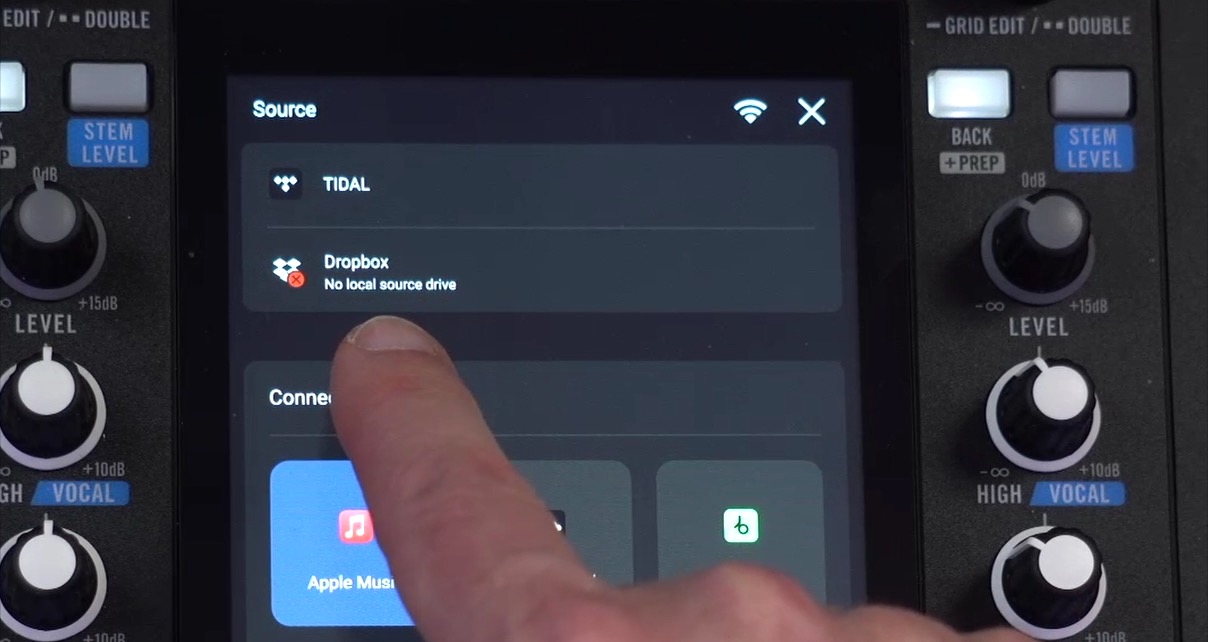
On the hardware, connect to the internet and open your Source menu. You’ll likely see a “no local source drive” message, which confuses a lot of people. Engine DJ needs somewhere to store the database – the file that tells the unit about your waveforms, cue points, and playlist structure. A USB drive, SD card, or internal drive needs to be plugged in for that.
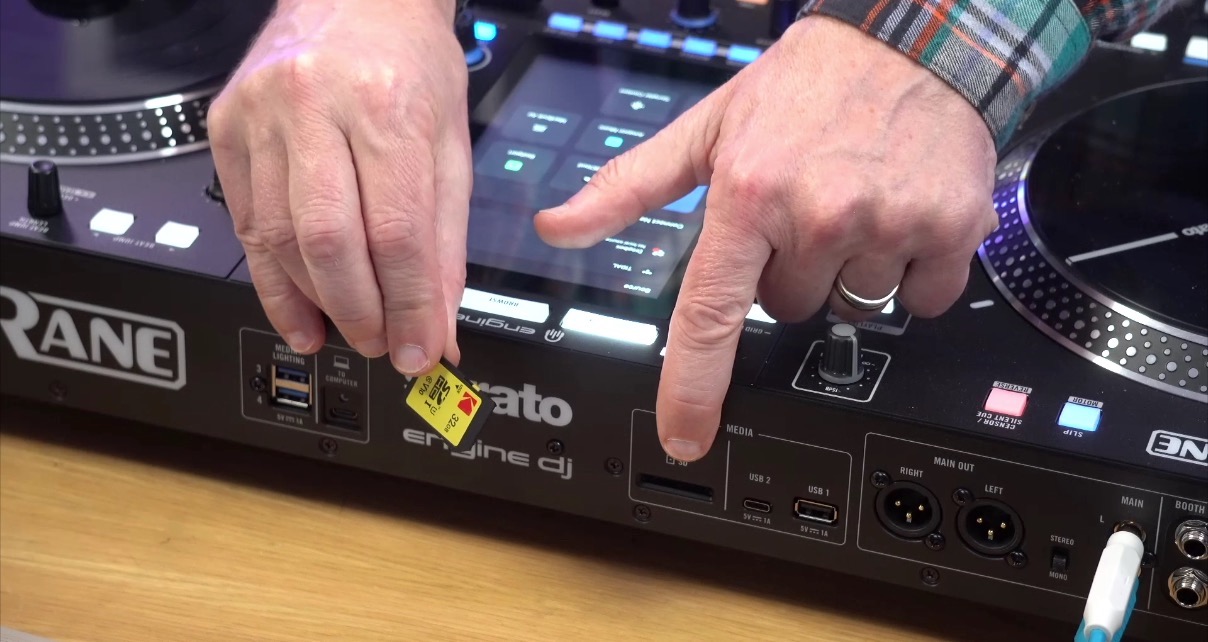
Most Engine OS units have an SD card slot around the back, so stick a small card in there permanently and you’ll never have to think about it again. Once that’s sorted, the database downloads and you’re good to go. Browse and load tracks just as you would from any other source.
Read this next: DJ Software Secrets – Where Your Info Really Lives
One thing to remember: if you add tracks to your playlists after the initial export, you need to manually fetch the updated database on the hardware. It won’t happen automatically – go to the Source menu, tap the three dots next to Dropbox, and hit Fetch.
Sign up to Tuesday Tips
 Free newsletter
 Your weekly digest of the latest training, gear reviews, industry news, and exclusive tips and tricks to help you stay ahead in your DJing.
We collect, use and protect your data in accordance with our Privacy Policy.
How it compares
Rekordbox’s CloudDirectPlay is the most direct comparison and it’s a considerably more powerful system. It keeps your whole library in the cloud, syncs in both directions, and doesn’t require a local database download at the hardware. You can manage your library on your phone and have everything ready the next time you log into any CloudDirectPlay-enabled gear.
AlphaTheta/Pioneer DJ has really baked it into the hardware – the CDJ-3000X even has NFC tap-to-login on the front panel. The catch is that it costs money, and it’s not a small amount. Engine DJ’s Dropbox integration costs you nothing, which changes the calculation somewhat.
VirtualDJ is a slightly different scenario since it’s laptop software, but its CloudDrive feature supports multiple providers – Google Drive, OneDrive, Dropbox, and others – and streams tracks directly with no export step at all. Solid for laptop DJs.
Should DJs Use It?
Not as your primary setup, but as a backup? Absolutely. Put your surefire tracks in there – your most requested songs, the stuff that gets you out of a tight spot at a gig. Keep it synced, leave it there, and DJ from your USB as normal. If you need something you didn’t plan for, it’s there waiting. Best of both worlds.
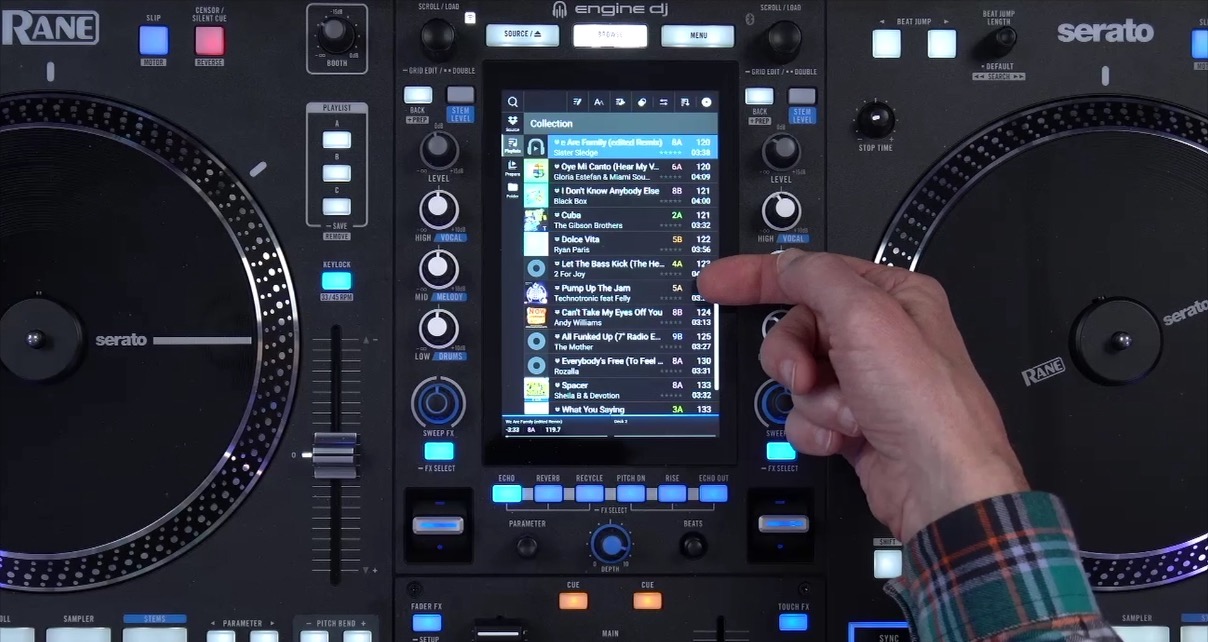
It’s free, it’s not complicated to set up, and it does what it says. Just don’t expect it to be a revolution. Five years in, it’s essentially unchanged – and whether that changes is down to the Engine OS team.
If DJ tech excites you but also leaves you wondering where to start, our book Rock The Dancefloor! breaks down the entire modern DJ workflow into five clear steps: gear, music, mixing, performing, and success. Grab your free copy by joining Digital DJ Tips today.


Phil Morse


