
If you’ve got a standalone Engine DJ unit (like the Rane System One or Denon DJ’s standalone range), here’s a tip that’s going to make your home set-up a whole lot simpler. No USB drive or cables needed – your laptop doesn’t even have to be in the same room!
Exporting to a USB drive makes total sense when you’re heading to a gig. But at home, when you’re adding new music to your collection and just want to hear it on your unit? That whole export-to-USB-then-plug-it-in routine gets old fast. Turns out, you don’t have to do it this way. Engine DJ lets your standalone unit pull music directly from your laptop over Wi-Fi – and the feature’s been there a while, so if you’ve missed it, now’s the time to give it a go.
How to set it up
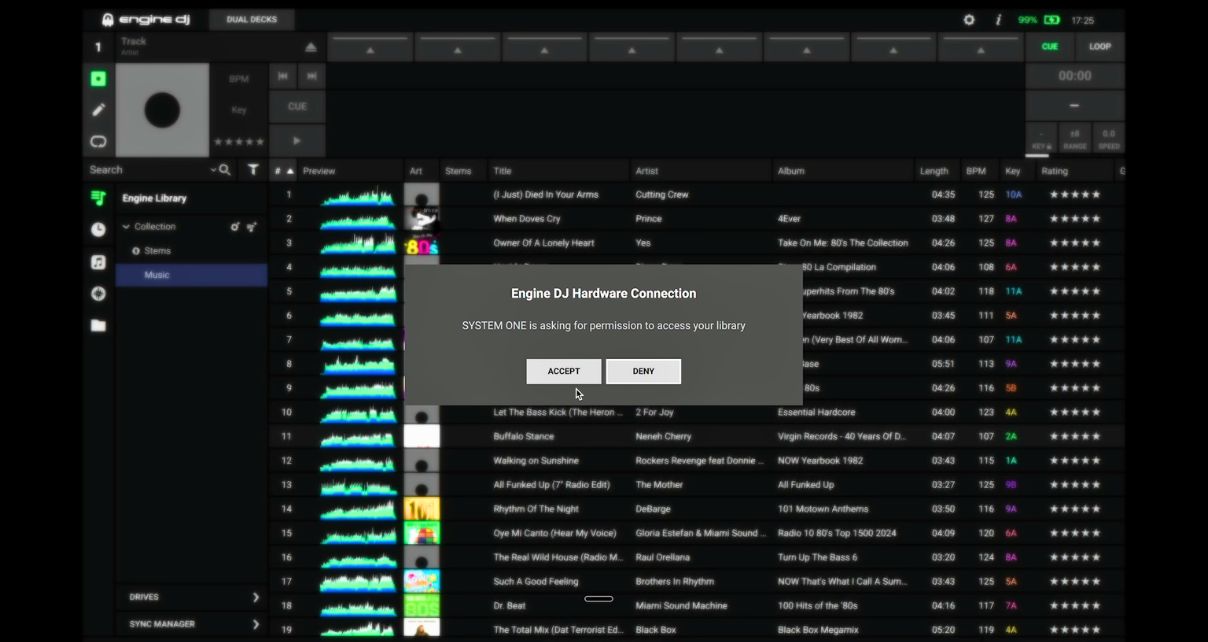
- Get both devices on the same Wi-Fi network – Your laptop running Engine DJ and your standalone unit must be on the same network – that’s the critical bit. Make sure you’re also up to date on both the Engine DJ desktop software and your unit’s firmware before you start
- Connect from the unit, not the laptop – On your Engine DJ hardware, head to your sources screen. If your laptop is on the same network with Engine DJ open, it’ll show up there by name. Tap on it, accept the connection prompt on your laptop, and your full library appears on the unit – ready to browse and load from, exactly as if you’d plugged in a USB drive
- The laptop just sits there – Once connected, everything is done from the unit itself. All the browsing and loading happens on the hardware – the laptop just needs to be on, with Engine DJ open, on the same network. You could close the lid, leave it in another room. It only needs a power cable. Nothing else
One thing to note: this is a bit different from the equivalent feature in the Rekordbox ecosystem, where you can use the laptop to drag tracks onto decks. In Engine DJ, everything is controlled from the unit – the laptop is purely a music source.
Sign up to our newsletter
 Free every Tuesday
 Your weekly digest of the latest training, gear reviews, industry news, and exclusive tips and tricks to help you stay ahead in your DJing.
We collect, use and protect your data in accordance with our Privacy Policy.
Finally…
This is one of those features that makes a real difference once you know about it – especially if you’re regularly adding new music and want to hear it straight away without going through the USB export process. Give it a try next time you’re at home with your unit.
Read this next: 5 Modern Technologies That Are Making Wireless DJing Possible
Want more tips like this? We publish free DJ tutorials every week at Digital DJ Tips — the world’s leading DJ school. Join us for free, and we’ll send you a copy of our best-selling book, Rock The Dancefloor! as a thank you.


Phil Morse

